Set Sails — logging in
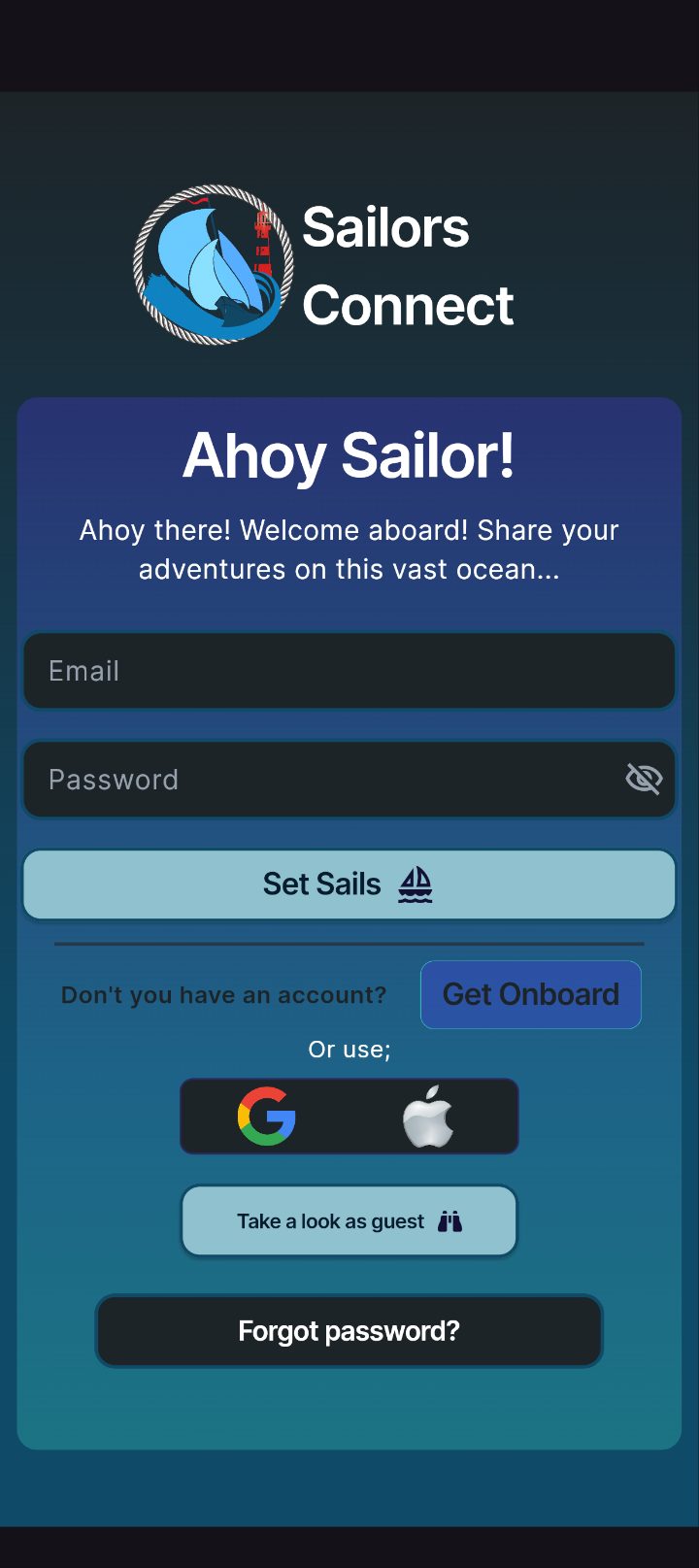
Your voyage starts here. Enter your email and password, then tap Set Sails to board your account. New to the crew? Tap Get Onboard to create a profile in a couple of minutes.
- Type your email and password — tap the eye icon to reveal what you typed.
- Hit the blue Set Sails button to log in.
- Forgot it? Tap Forgot password? to reset by email.
- Switch the app language from the dropdown at the bottom.
Get Onboard — create your profile
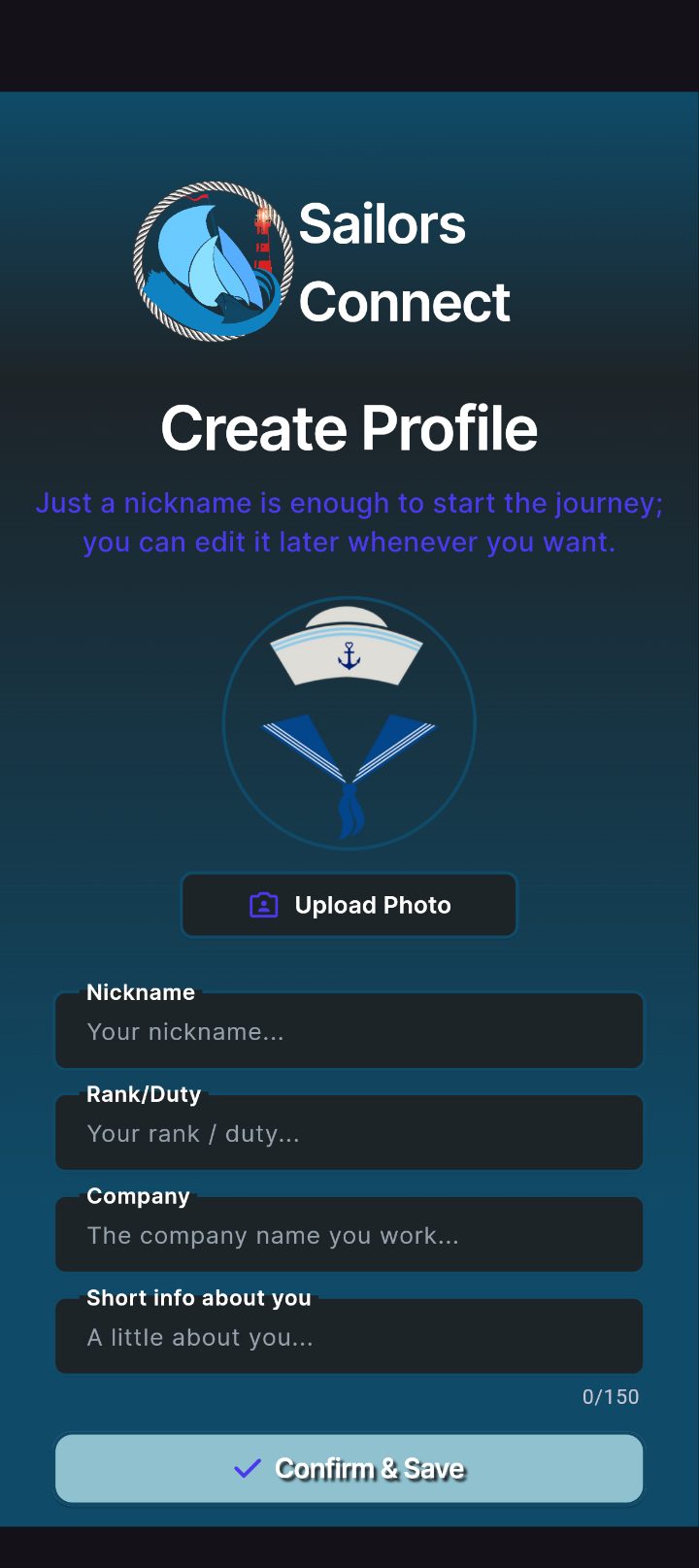
Tell the crew who you are. Add a photo, your nickname, rank and a short bio so fellow sailors know who they're talking to. Only what you choose is shown — reviews can still be posted anonymously.
- Tap Upload Photo to set your avatar (optional).
- Fill in your Nick Name and Rank / Duty.
- Add the Company you work for and a short note about yourself (150 characters).
- Tap Confirm & Save to finish boarding.
Privacy first. You can communicate demands for better conditions and post reviews anonymously — your identity stays yours.
Home — your bridge
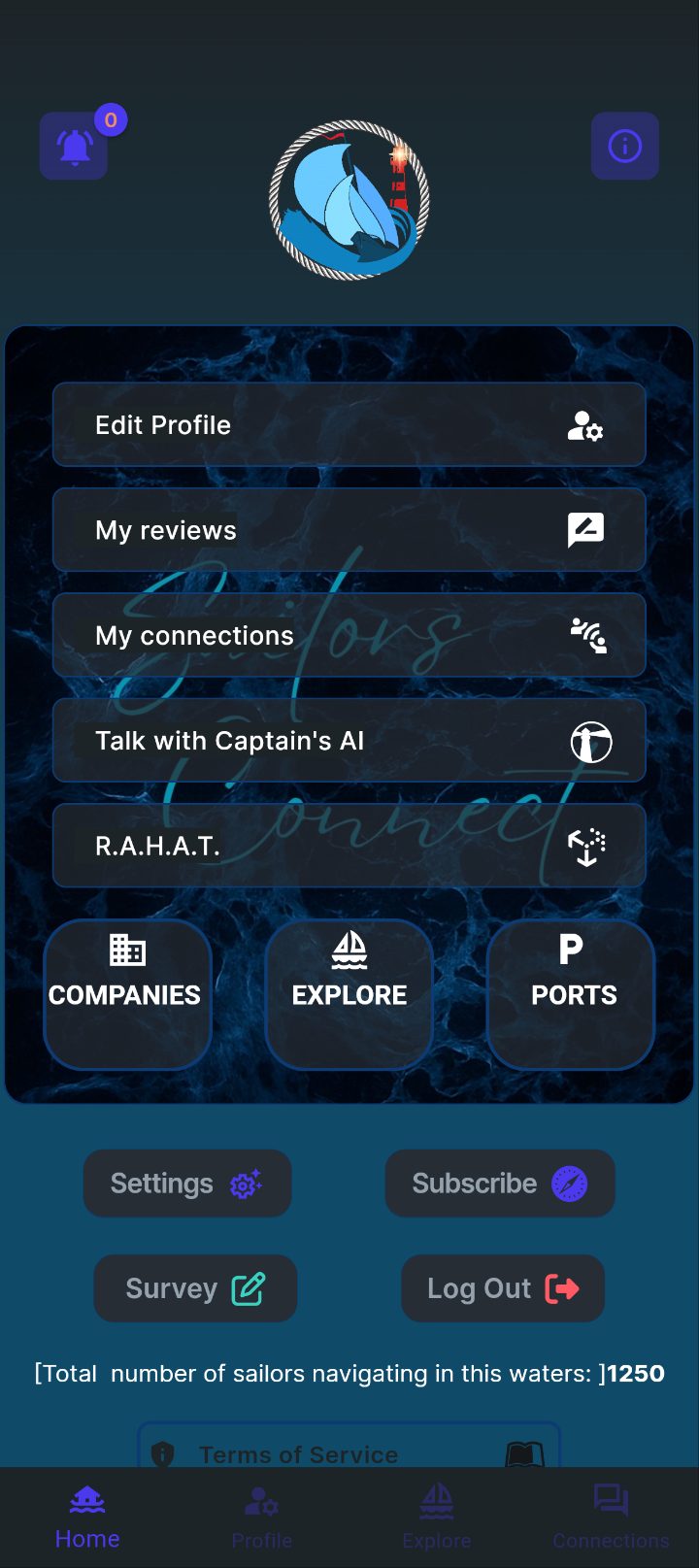
The Home screen is your command bridge. Reach your profile, reviews, connections and Captain's AI from the stacked shortcuts, and jump straight to Companies, Explore or Ports from the ocean panel.
- Edit Profile and My reviews to manage what you've shared.
- My connections and Talk with Captain's AI open your crew and the AI captain.
- R.A.H.A.T. and Lookout Assist (Beta) — the safety tools — sit right below.
- Check the notification bell (top-left) for replies and updates.
- Use the bottom tabs — Home · Profile · Explore · Connections — to sail anywhere.
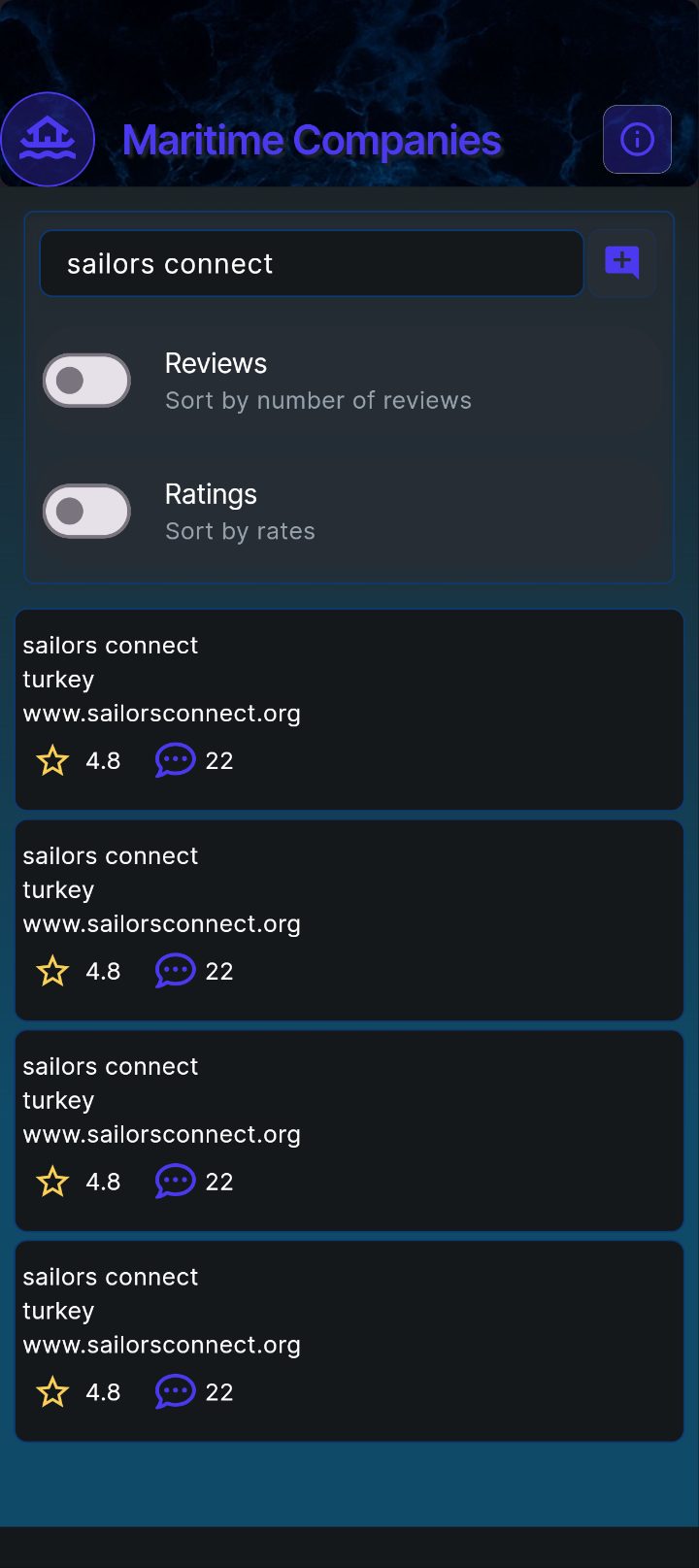
Maritime Companies
Search any maritime company and see its overall rating and review count at a glance. Sort the list to find the best-rated or most-reviewed employers fast.
- Type a company name in the search bar.
- Toggle Reviews (sort by number of reviews) or Ratings (sort by rates).
- Can't find a company? Tap the + to add it.
- Tap any card to open its full Company Ratings.
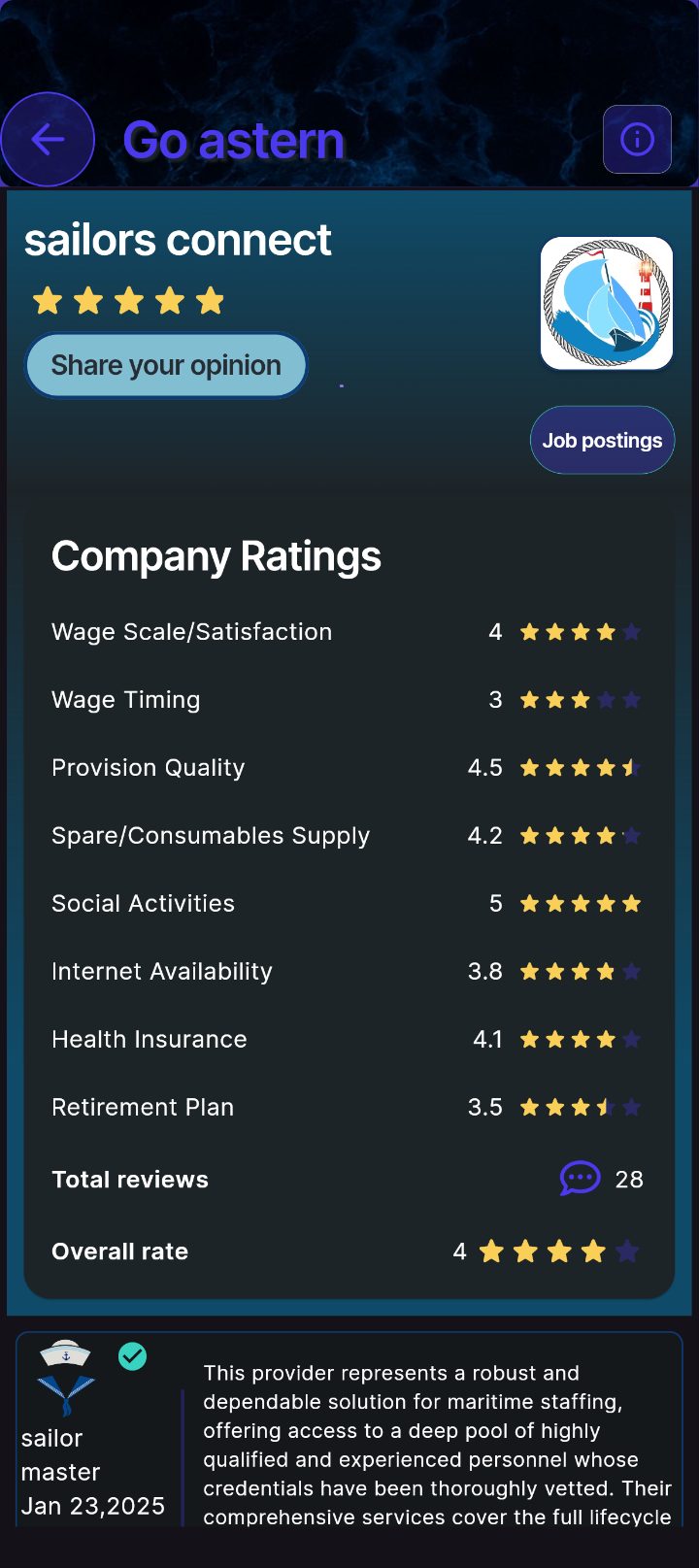
Company Ratings
Each company is rated on wages, wage timing, provisions, supplies, social activities, internet, insurance and retirement — plus an overall rate. Read crew reviews below and add your own.
- Scan the category ratings and the Overall rate at the bottom.
- Tap Share your opinion to leave your own rating and review.
- Tap Job postings to see open positions.
- Like helpful reviews and reply to start a conversation.
- Tap Go astern to head back.
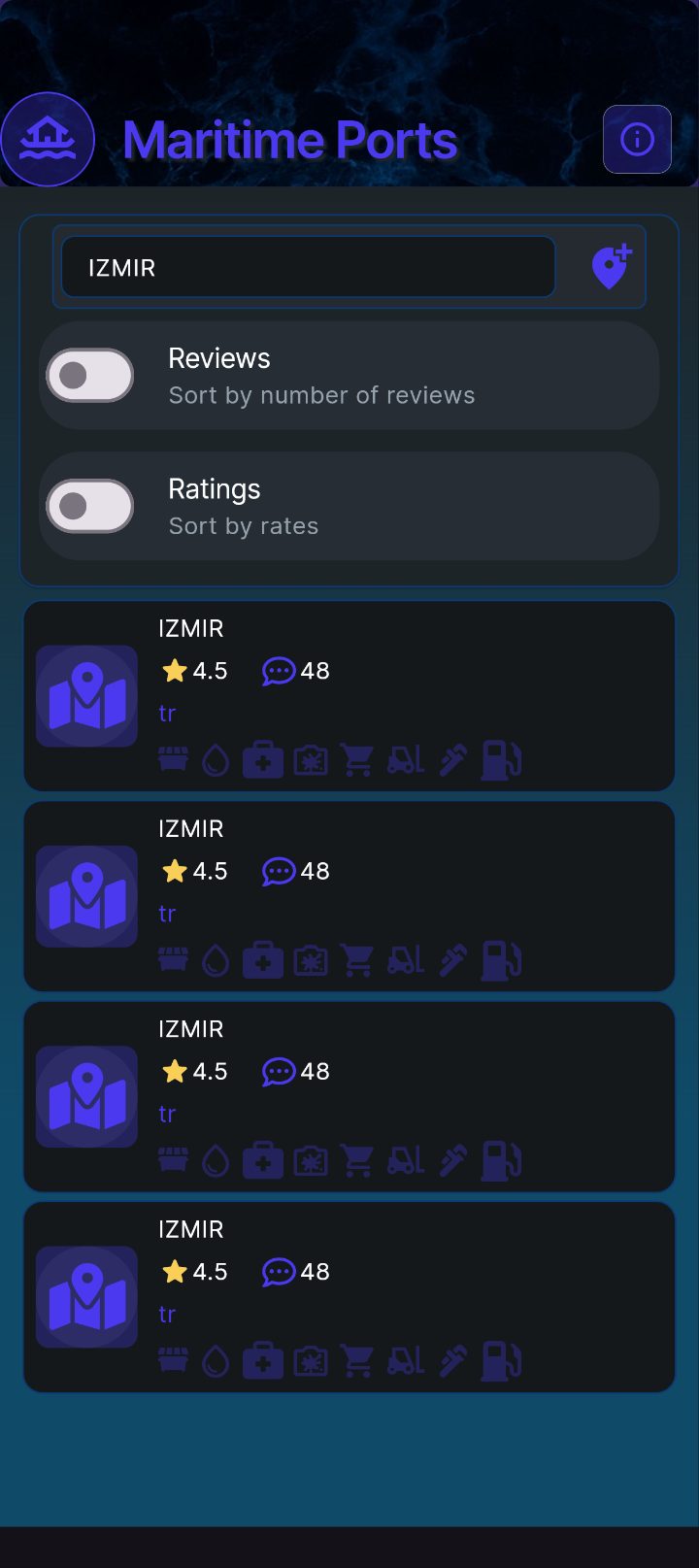
Maritime Ports
Browse and search ports the same way you search companies. Each card shows the rating, review count and a row of facility icons so you can spot what's available at a glance.
- Search a port by name and sort by Reviews or Ratings.
- Read the facility icons — water, fuel, medical, provisions and more.
- Tap the map icon on a port card to open its exact position on the map.
- Tap the pin + to add a port that's missing.
- Open any card for the full facilities breakdown.
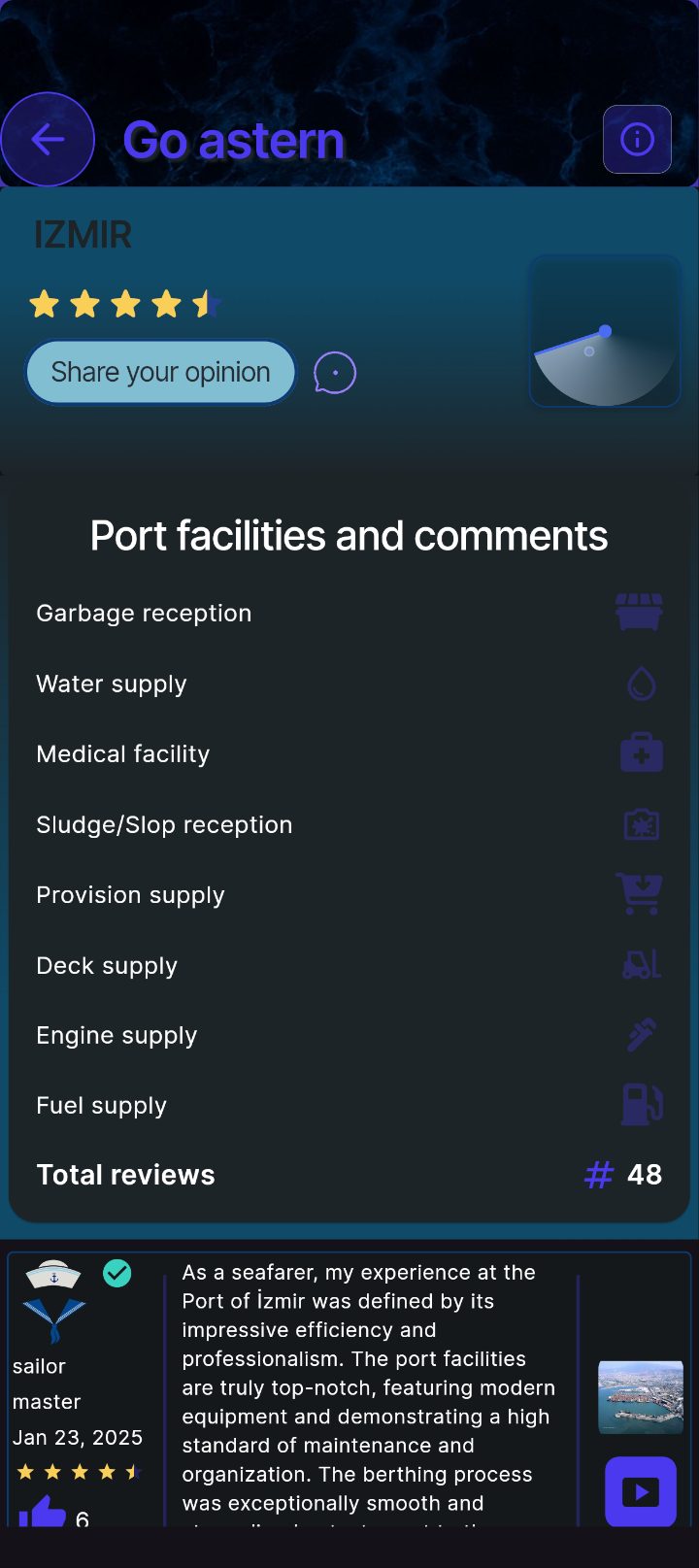
Port facilities & comments
See exactly what a port provides — garbage and sludge reception, water, medical, provisions, deck, engine and fuel supply — alongside ratings and first-hand crew comments with photos.
- Review the full facilities list and the port's star rating.
- Tap Share your opinion to rate the port and leave a comment.
- Browse crew photos and comments at the bottom.
- Use the RADAR here to see sailors around this port.
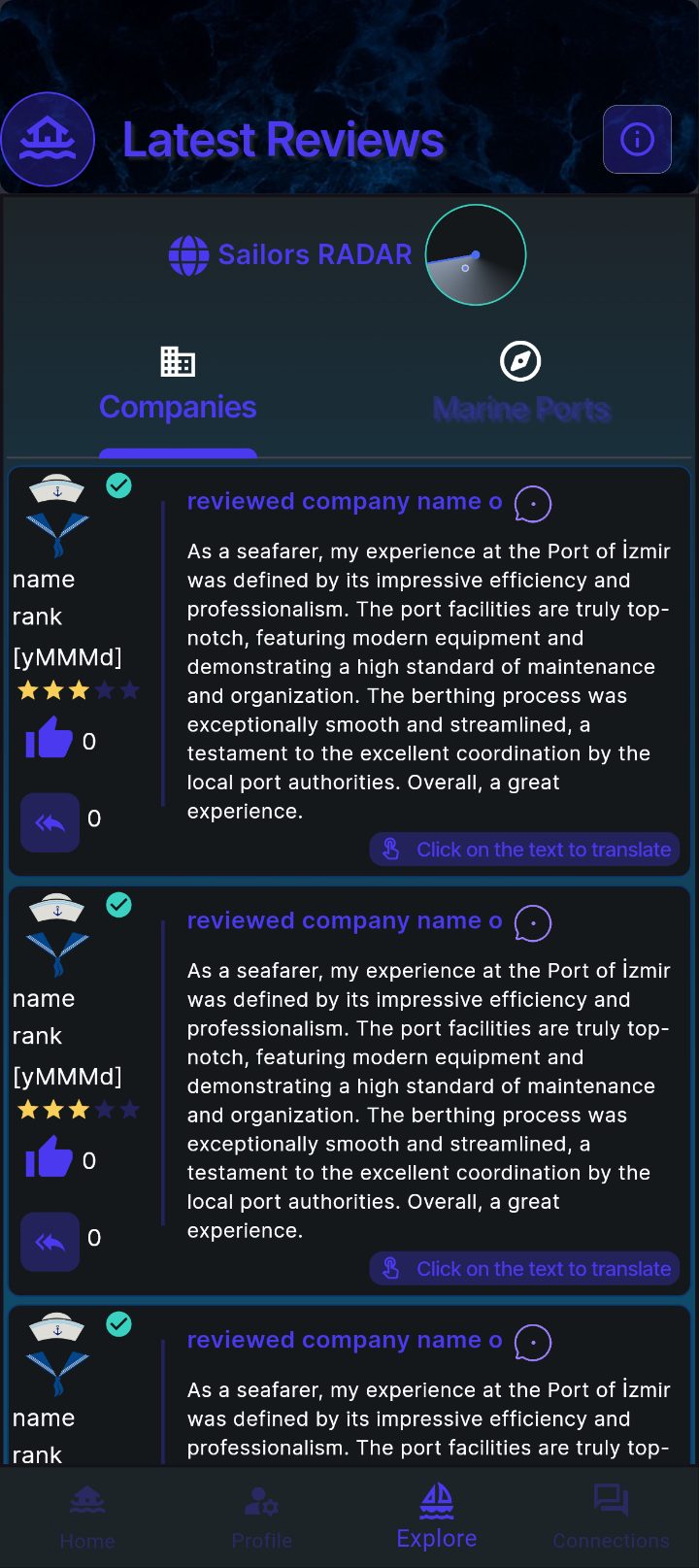
Explore — latest reviews
The Explore tab streams the newest reviews across the fleet. Switch between Companies and Marine Ports, and check who's contributing the most to the community.
- Switch tabs: Companies · Marine Ports.
- Tap Sailors RADAR at the top to see sailors around you on the map.
- Like and reply to reviews to join the conversation.
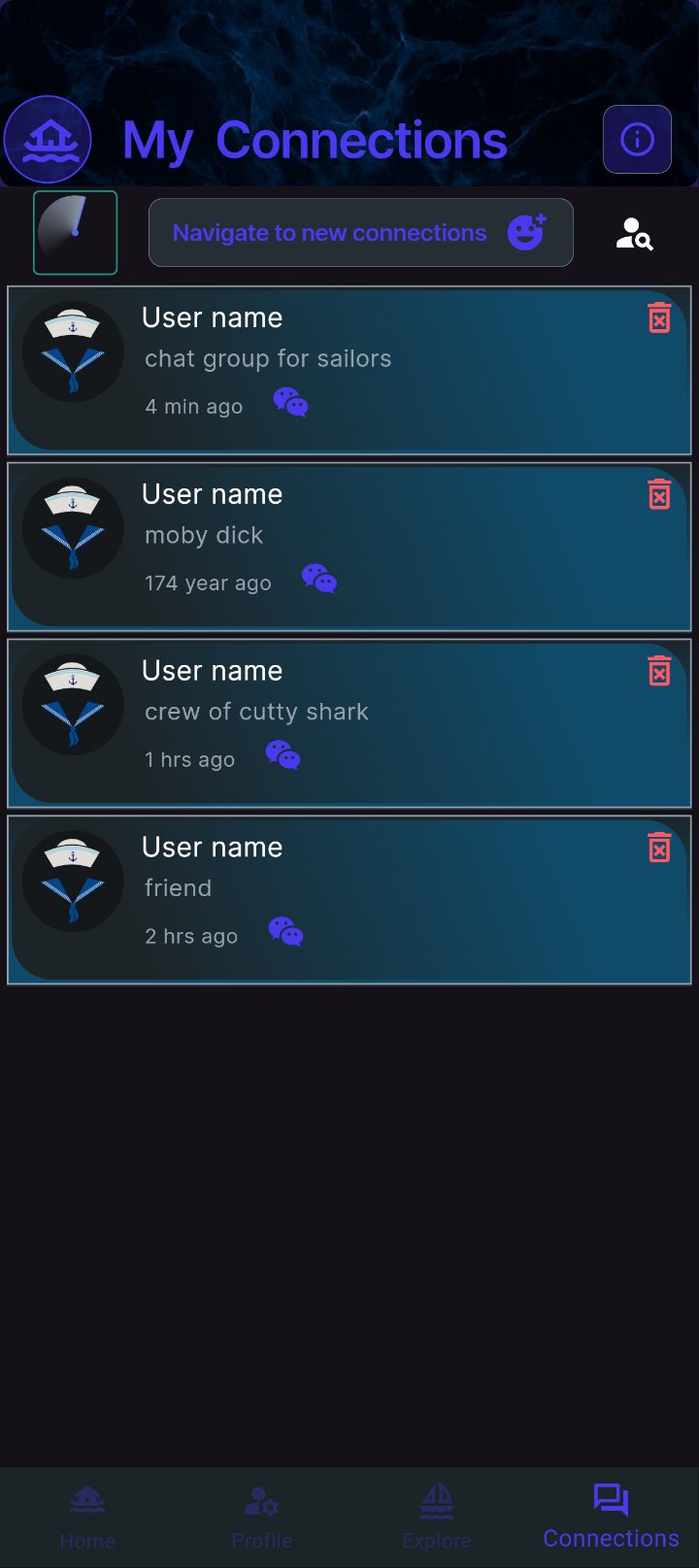
My Connections
Build a network of fellow seafarers. Chat with sailors who reviewed your company or port, join crew groups, and keep familiar faces close for the next harbour.
- Tap Navigate to new connections to find sailors to add.
- Use the RADAR (top-left) to spot sailors around you on the map.
- Use the search icon to look up a specific sailor.
- Tap a connection to open the chat.
- Remove a connection with the red delete icon.
Talk with Captain's AI
Open Captain's AI from Home and ask anything — contract clauses, port rules, safety drills, or what a company's reviews really mean. You'll get clear, sailor-savvy answers any time, anywhere.
- Type a question in plain English (or your language).
- Ask follow-ups — the Captain keeps the conversation in context.
- Use it for guidance, not legal advice — always confirm critical decisions.
Premium feature. Captain's AI is included with a subscription — like R.A.H.A.T. See Choose Your Route below to unlock it.
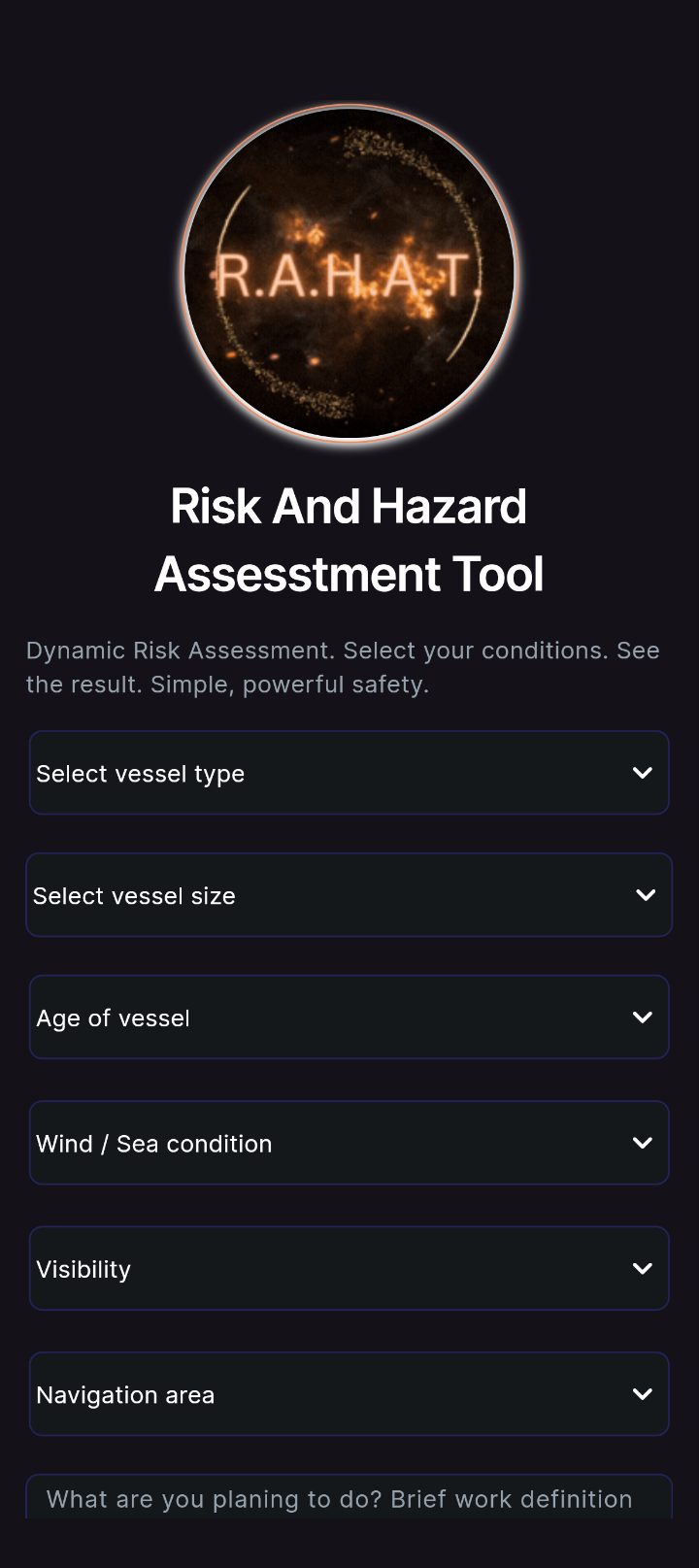
R.A.H.A.T. — risk & hazard assessment
Open R.A.H.A.T. (Risk And Hazard Assessment Tool) from Home and describe the job ahead. Set your vessel and the conditions and it returns a clear, dynamic risk read — so the whole crew works smarter and safer.
- Select vessel type, size and age.
- Set the wind / sea condition, visibility and navigation area.
- Add a brief work definition — what you're planning to do.
- Get an instant risk result to plan the task safely.
Premium feature. R.A.H.A.T. is included with a subscription. See Choose Your Route below to unlock it.
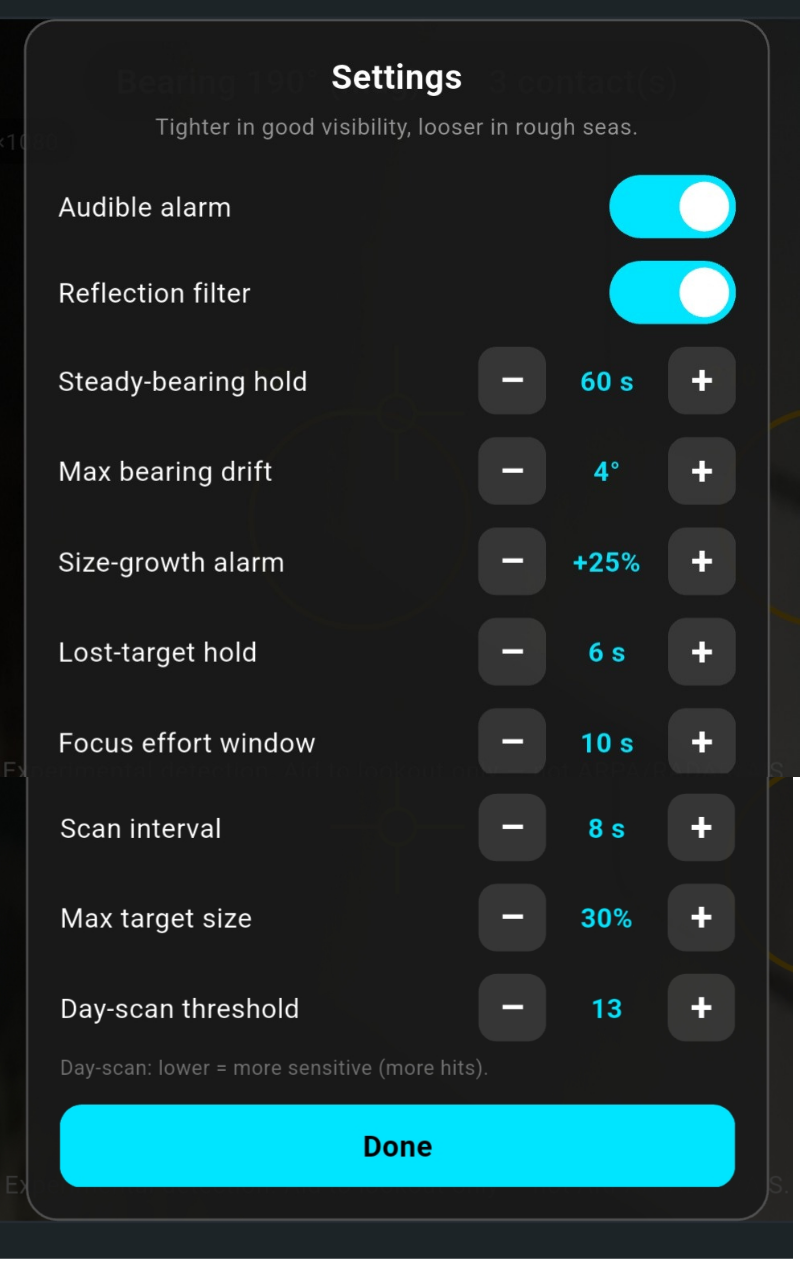
Nav Assist — camera lookout aid
Open Lookout Assist (Beta) from Home, accept the “Read before use” disclaimer, and point your camera at the sea. Contacts around you are marked with their bearing, and alarms warn you when one deserves attention. Tune it from the Settings panel — the rule of thumb on top says it all: tighter in good visibility, looser in rough seas.
- Audible alarm — sound the alerts out loud; Reflection filter ignores sun glare and reflections on the water.
- Steady-bearing hold (e.g. 60 s) + Max bearing drift (e.g. 4°) — how long a contact must hold a near-constant bearing before the alarm sounds.
- Size-growth alarm (e.g. +25%) — warns when a contact is visibly growing, i.e. closing in.
- Lost-target hold, Focus effort window and Scan interval — how long lost contacts are remembered and how often the sea is re-scanned.
- Max target size and Day-scan threshold — detection sensitivity; a lower threshold means more sensitive (more hits).
Aid to lookout only. Nav Assist is experimental. It is not a navigation, ARPA, RADAR or AIS system and never replaces proper watchkeeping — keep a full visual and aural lookout at all times.
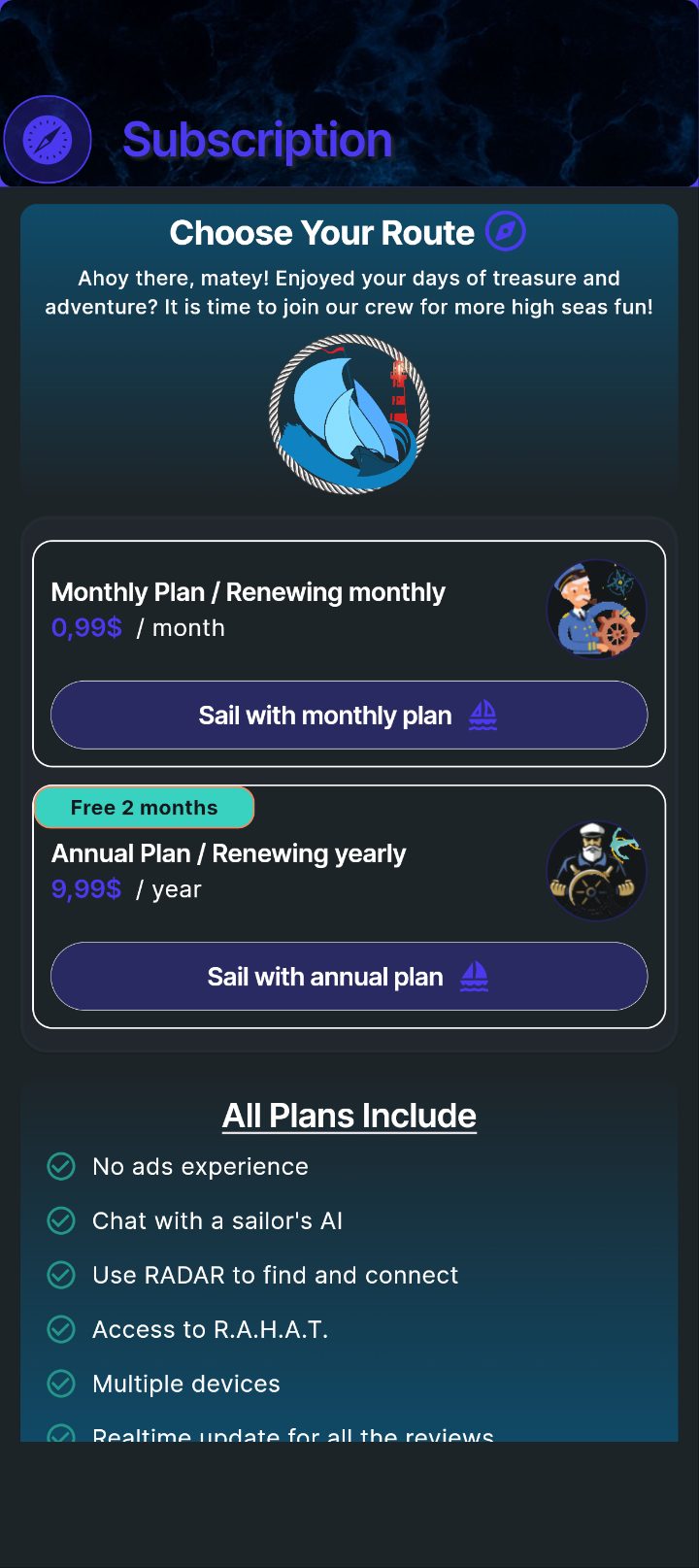
Choose Your Route — subscription
Sailors Connect is free to use — rate companies and ports, connect with crew and read reviews without paying. A subscription unlocks the premium tools: R.A.H.A.T., Captain's AI and unlimited RADAR — and removes ads.
- The core app is free — no trial needed.
- Subscribers unlock R.A.H.A.T., Captain's AI and unlimited RADAR.
- Subscribing also removes ads across the app.
- Pick Sail with monthly plan or the Annual Plan (best value).